Four comparison layersForms, Data Entities, and Tables across F&O and CE
 Versionz Product
360° COMPARISON FOR MICROSOFT DYNAMICS 365
The D365 Comparison Tool compares D365 F&O Forms, Data Entities, Tables, and D365 CE Tables — all from one powerful web-based platform.

Most comparison approaches focus on only one layer of Dynamics 365. The D365 Comparison Tool goes further — from the form your user works with, to the data entity behind it, to the underlying table, to Dynamics 365 Customer Engagement.
Compare data directly at the form level across Dynamics 365 Finance & Operations environments.
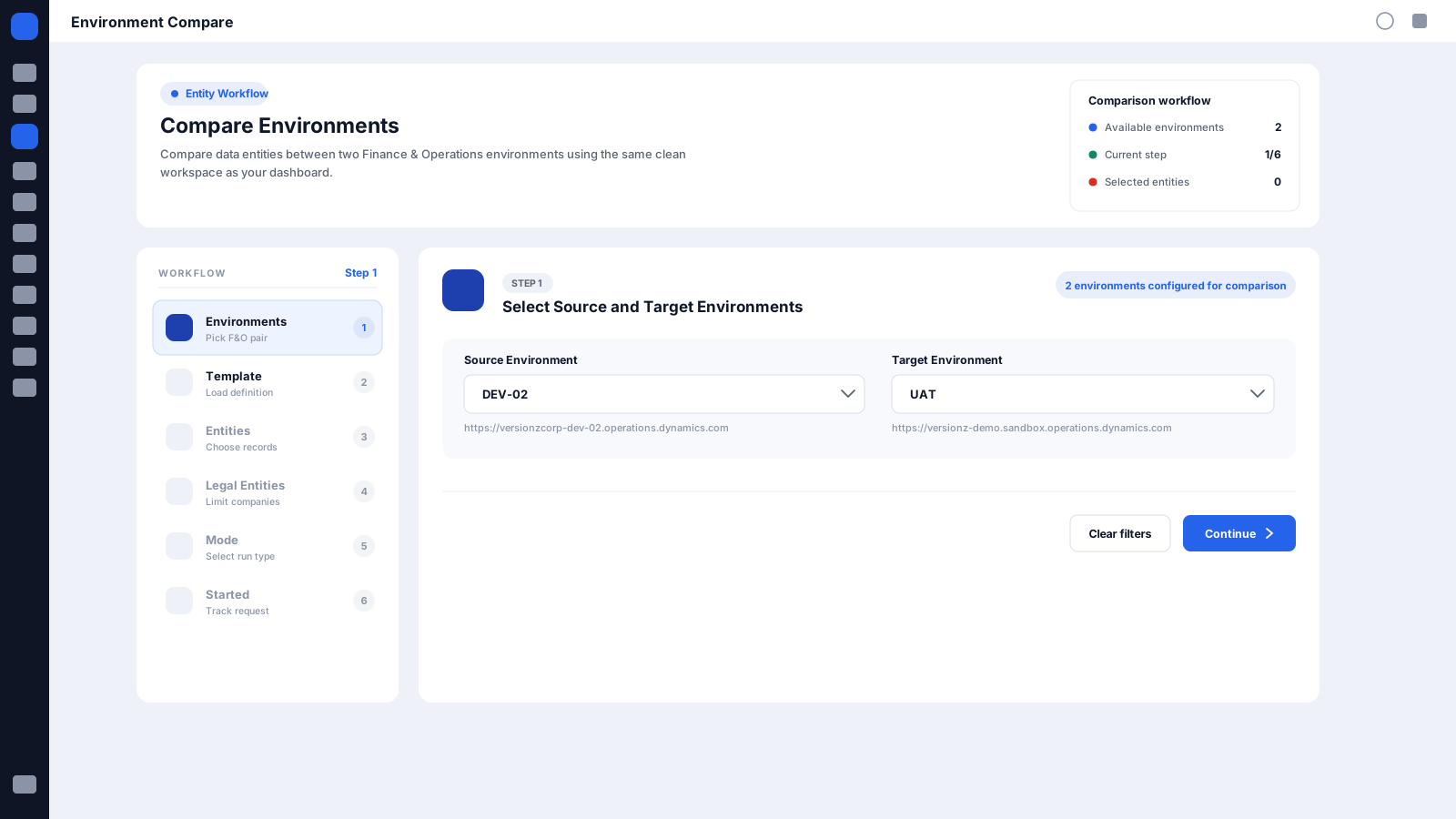
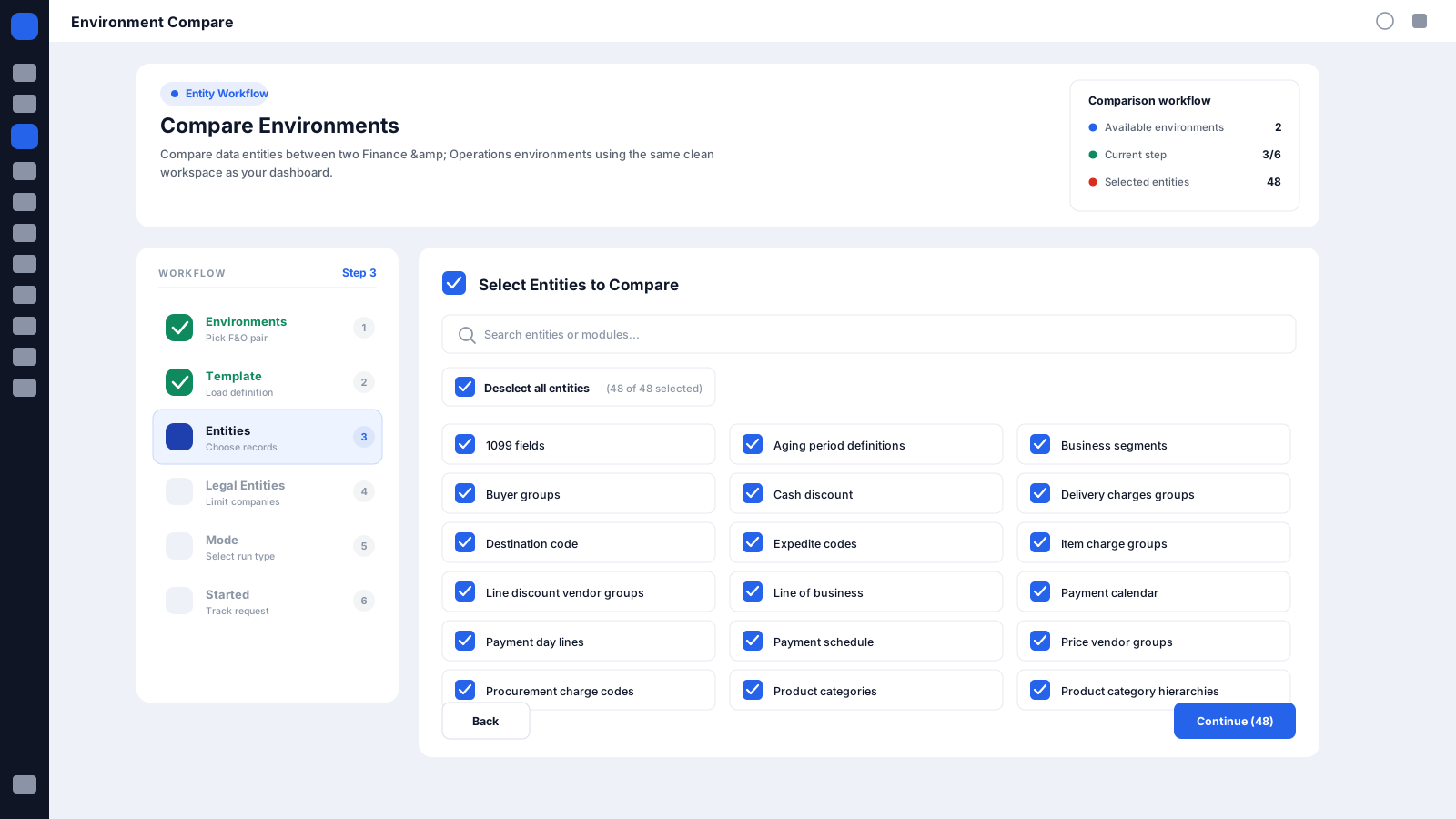
Compare standard and custom D365 F&O Data Entities across Development, Test, UAT, Sandbox, Pre-Production, and Production.
Compare standard and custom D365 F&O Tables for deeper technical and data-level validation.
Compare standard and custom Dynamics 365 Customer Engagement Tables across CRM environments.
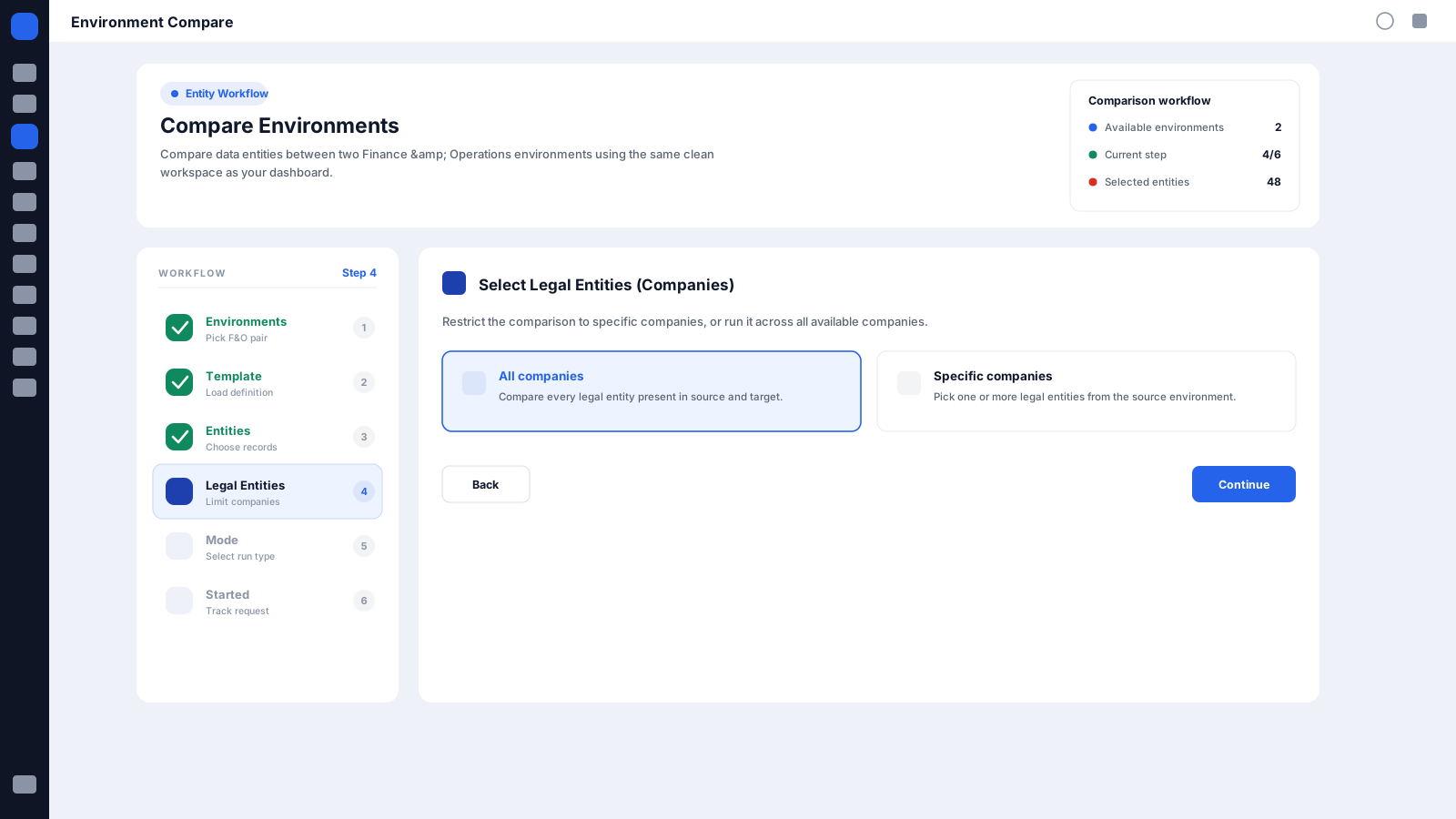
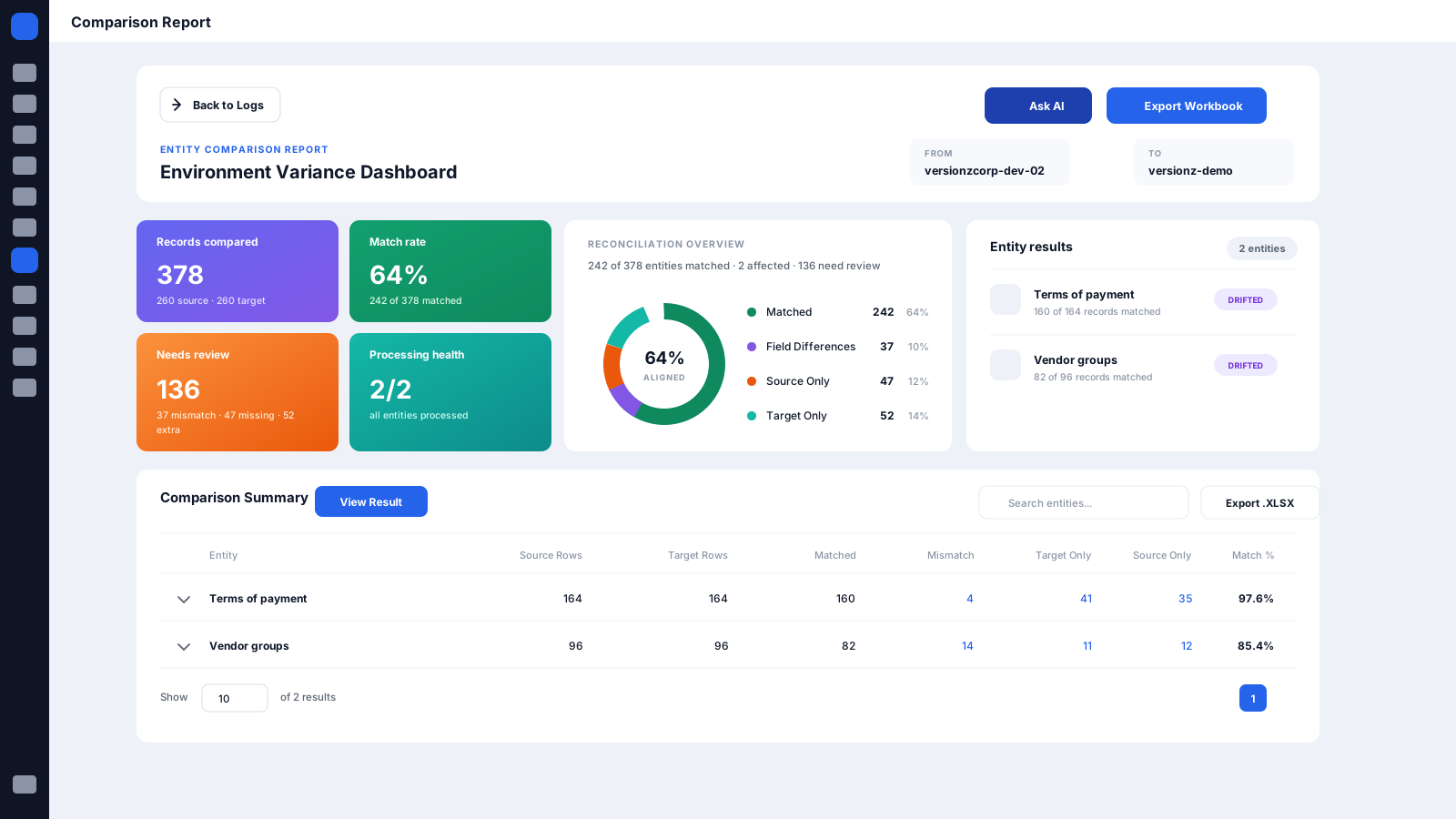
A guided wizard to configure a run, an interactive dashboard to read the results, scheduled runs with automated logs, and categorized comparison outputs.
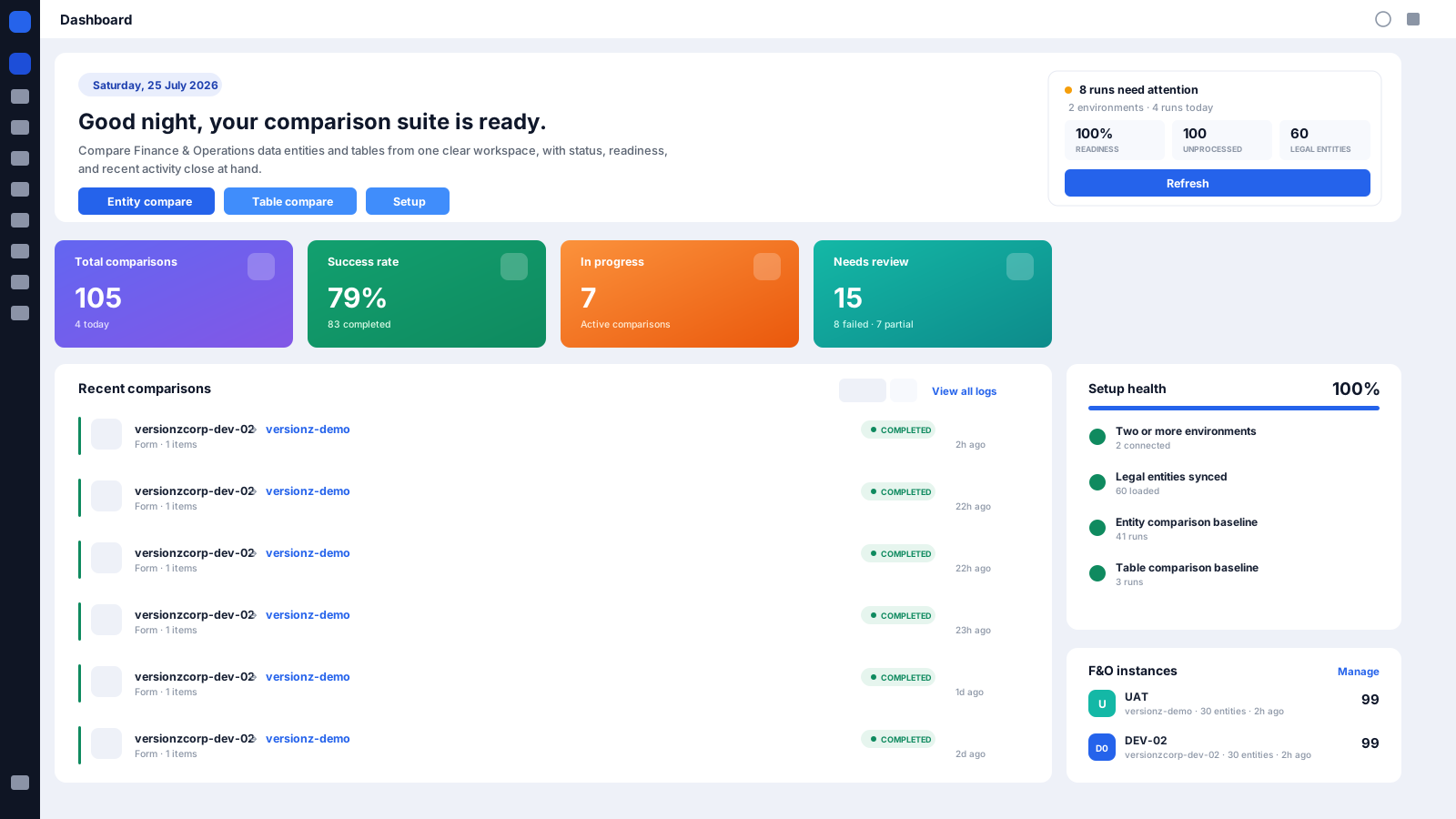
D365 F&O Form-to-Form comparison
One of the most powerful capabilities of the D365 Comparison Tool is form-level comparison for Dynamics 365 Finance & Operations. Compare data from a D365 F&O form in one environment against the corresponding form in another, and identify:
D365 F&O Data Entity comparison
Compare Dynamics 365 Finance & Operations Data Entities across environments to validate migrations, deployments, integrations, and environment refreshes. Coverage includes:
D365 F&O Table-to-Table comparison
When you need to go deeper, compare Dynamics 365 Finance & Operations Tables directly across environments. Table-level comparison gives technical teams visibility into differences that may not be obvious through forms or data entities. Use it for:
Dynamics 365 CE comparison
The D365 Comparison Tool is not limited to Finance & Operations. Compare Dynamics 365 Customer Engagement Tables across environments from the same web application. Coverage includes:
Four comparison layers across two Dynamics 365 platforms, each answering a different question about your environments — from the form a user works with to the table where the data lives.
| Comparison layer | Platform | What you can compare |
|---|---|---|
| Form-to-Form | D365 Finance & Operations | Data presented through D365 F&O forms |
| Data Entity-to-Entity | D365 Finance & Operations | Standard and custom Data Entities |
| Table-to-Table | D365 Finance & Operations | Standard and custom F&O Tables |
| Table-to-Table | D365 Customer Engagement | Standard and custom CE Tables |
No more jumping between spreadsheets, exports, scripts, database queries, and separate ERP and CRM comparison tools. One centralized platform replaces all of it:
Configuring an environment, migrating into it, testing it, and signing it off each demand a different depth of detail. The platform covers every level, so each team can start where it is already fluent.
Talk to Sales
Use Form-to-Form Comparison to validate business data through familiar D365 F&O forms.
Use Table-to-Table Comparison to investigate underlying data and technical differences.

Use Data Entity Comparison to verify migrated datasets between source and target environments.

Use CE Table Comparison to validate standard and custom records across environments.

Use Forms, Data Entities, and Table comparisons across F&O and CE to strengthen regression testing and release validation.
Gain a broader view of consistency across the Dynamics 365 application landscape.
Whether you compare a Form, Data Entity, F&O Table, or CE Table, results are categorized the same way — so you can act on meaningful differences instead of sifting through raw exports.
Source only
Records present in the source environment but missing from the target.
Target only
Records found in the target but not in the source.
Matched pair
Matching records containing different values.
Field level
See exactly which fields differ between matching records.
Setup data
Detect variations in application configuration and setup data across environments.
Comparison is not a one-off event — every stage has its own validation question. Compare once when you need answers, and automate comparisons when you need continuous confidence.

Compare environments and establish a baseline before releasing changes.
Validate Forms, Data Entities, and Table data across F&O and CE to identify unexpected differences.
Compare source and target datasets to detect missing, additional, or modified records.

Validate critical data and configuration to confirm the refreshed environment is ready.

Use comparison results to support functional testing, technical testing, regression testing, and release validation.

Schedule recurring comparisons to monitor critical data and identify environment drift.
Both. It compares Dynamics 365 Finance & Operations — at the Form, Data Entity, and Table level — and Dynamics 365 Customer Engagement Tables, from the same web application.
No. Form-to-Form Comparison lets you start from the D365 F&O form you already work with, so functional consultants, QA teams, business analysts, and business users can validate environments without first identifying the underlying table or data entity.
Any pair across your landscape — Development, Test, UAT, Sandbox, Pre-Production, and Production. Common pairs include Development to UAT, UAT to Production, and Sandbox to Production.
Missing records, additional records, modified records, field-level differences between matching records, and configuration differences across environments. Every difference is categorized automatically.
Yes. Comparisons can be scheduled daily, weekly, or monthly, with automated email notifications, detailed difference reports, critical mismatch alerts, and historical results retained for trend analysis.
From D365 F&O Forms to Data Entities, from underlying F&O Tables to Dynamics 365 CE Tables, the platform helps teams identify differences faster, validate changes with greater confidence, and maintain consistency across their Dynamics 365 landscape.
Forms. Data Entities. F&O Tables. CE Tables.
Development. Test. UAT. Sandbox. Pre-Production. Production.

Missing. Additional. Modified. Field-level. Configuration.
Next Step